Change Wi-Fi Password and Name (SSID)
It does not matter whether you know about router settings or not; you can follow the process below to change the Wi-Fi name and password easily and quickly.
Open the Router Login Page
The first step to change the Wi-Fi credentials is to log in to the router admin control panel. To access it, we have to know the router’s IP address. We will use this IP as a gateway to access the router’s configuration window.
To access it, open any web browser and type your router’s IP address into the address bar, or click the blue button below to access it directly.
If the address shows an error, it means your router has a different IP assigned. The IP address depends on the router brand. The most common IP addresses are below:
- 192.168.1.1
- 192.168.1.254
- 192.168.2.1
- 192.168.0.1
- 10.0.0.1
If none of these work, find your router’s Default Gateway on your computer or phone and use that address instead. After the login page appears, enter the router’s administrator username and password.
Important Note: To quickly find the default address of your router, just grab your router and look on the back or bottom side. Every router brand usually mentions it on the back or bottom of the router, printed on the sticker.
Connect to the Router Wi-Fi
Once you find the correct IP, the next step is to connect your device to the same Wi-Fi network. Using a different network will usually show errors when you try to access the router.
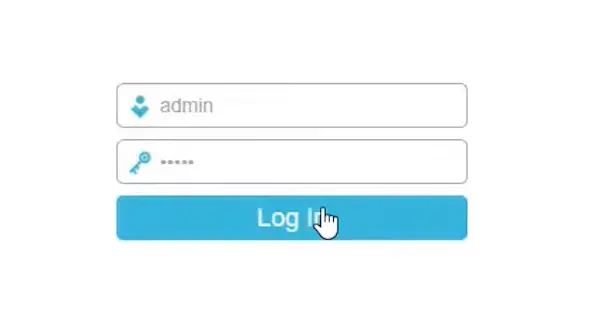
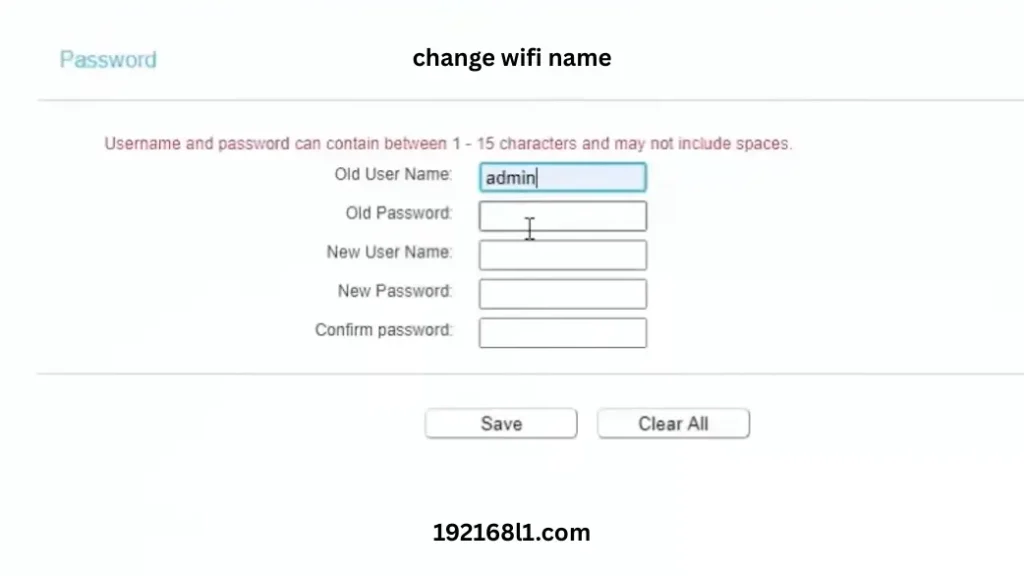
Now type that IP into the browser’s address bar and enter your admin username and password in their respective fields.
Step 2: Go to the Wireless Settings
After signing in, look through the menu at the top or on the left side of the admin dashboard for one of these options, as every router interface may have slightly different names:
- Wireless
- Wi-Fi
- Wireless Settings
- Wi-Fi Settings
- Basic Wireless
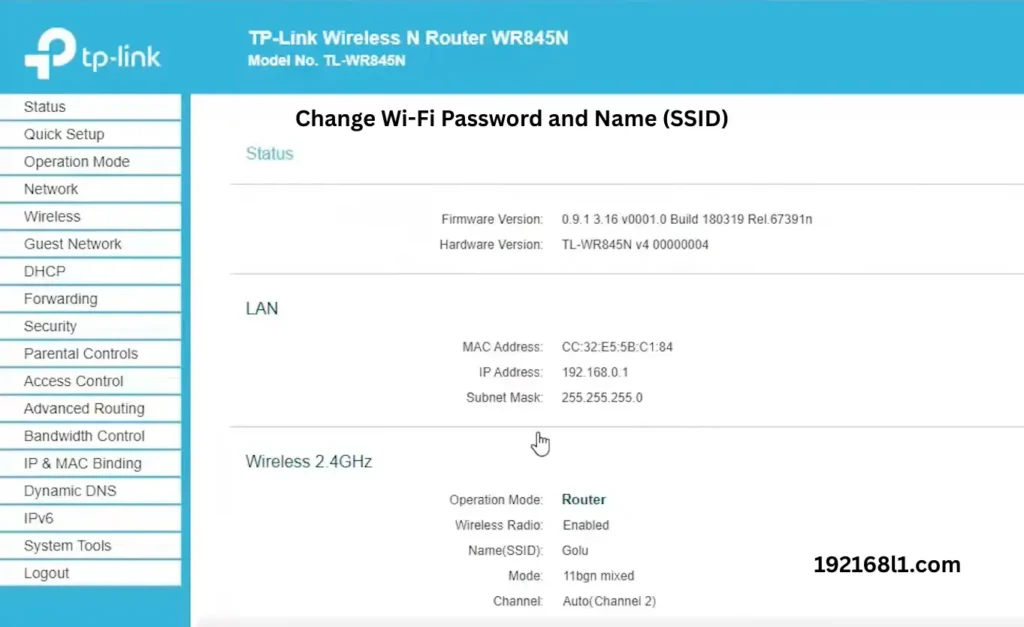
On most routers, such as dual-band or tri-band models, you will see separate settings for the 2.4 GHz, 5 GHz, and sometimes, but very rarely, 6 GHz networks. This allows you to set a different name and password for each band. Some newer routers also include Smart Connect, which uses one Wi-Fi name for all bands.
Step 3: Change the Wi-Fi Name (SSID)
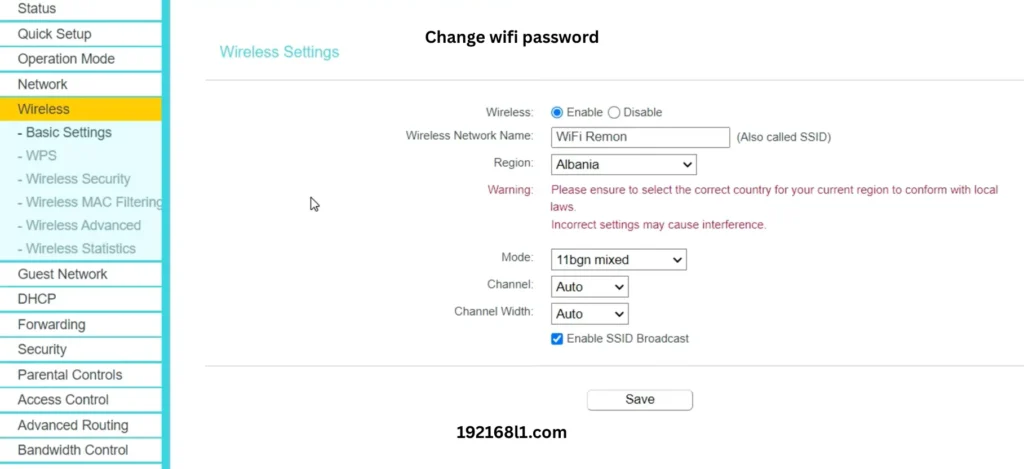
Now, in the Wireless menu, there will be subsections, so click on Basic Settings.
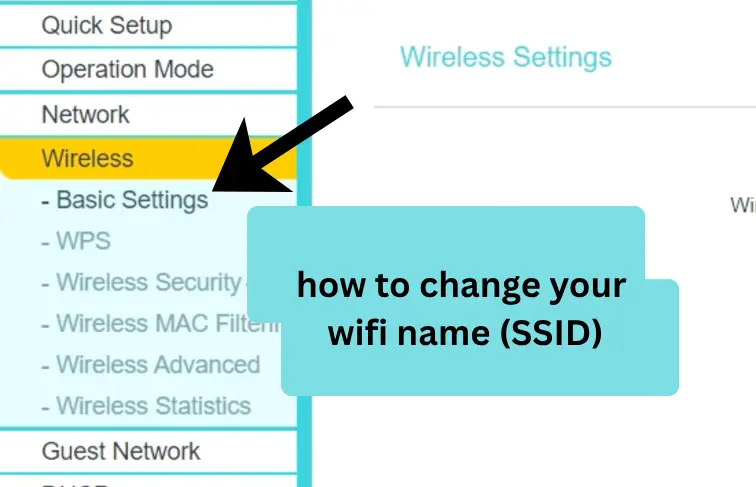
- To change the Wi-Fi router name, find the field labeled Network Name (SSID), Wireless Network Name, or simply SSID.
Delete the existing name and enter a new one that is easy to recognize.
For example:
- SmithHome
- JohnsonWiFi
- CharlesWiFi
- HostelWiFi
- Office123
Important Tip: Avoid including personal details such as your full name, address, apartment number, or phone number in the network name.
Step 4: Change the Wi-Fi Password
From the same menu, click on the Wireless Security submenu and locate the field named
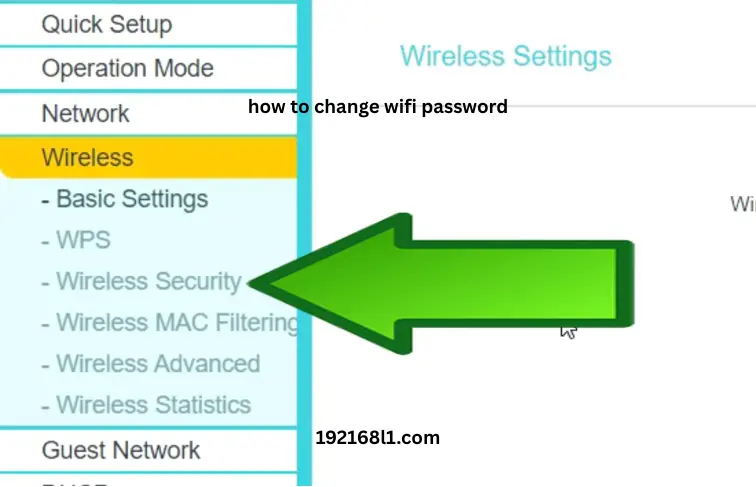
- Wireless Password
- Wi-Fi Password
- Passphrase
- Network Key
Now remove the old password and enter a new one.
For a good and secure password, it should:
- Be at least 16 characters long.
- Include both uppercase and lowercase letters.
- Contain numbers and special characters when supported.
Avoid simple and easy-to-guess passwords such as 12345678, password, or your phone number.
Encryption Mode
As a tech security expert, I recommend using WPA2-Personal (AES) or WPA3-Personal if your router supports it.
Save the Changes
After making these changes, click on Save to update your settings.
When you click on Save, every device that is connected to the Wi-Fi will disconnect because the old network name and password are no longer valid.
Reconnect Your Devices
Now enter the new credentials to connect your devices back. To do it:
- Search for your new Wi-Fi name on each device.
- Select it and enter the new password.
After changing the Wi-Fi name or password, you will need to reconnect every wireless device, such as:
- Smartphones
- Laptops
- Tablets
- Smart TVs
- Gaming consoles
- Security cameras
- Smart home devices
FAQs
Conclusion
Changing your router Wi-Fi name and password is a simple process once you know how to access the admin panel. You just need to log in through the router’s IP address, go to the wireless settings, and update the Wi-Fi name and password. I would recommend using a strong password with a combination of letters, numbers, and special characters to make your Wi-Fi more secure.