
Spectrum Router, Modem, and Wi-Fi Reset
Facing slow internet, connection drops, login issues, or a Wi-Fi problem? Resetting your Spectrum router or modem can help fix different network issues and bring the device back to its normal working condition. You can reset your home, office, or apartment router and modem in different ways, either using the physical reset button or through the My Spectrum app, depending on your device.
In this guide, I will explain how to reset your Spectrum router, modem, and Wi-Fi, what happens after a reset, and what you should do if the reset button is not working.
Restart Your Spectrum Modem and Router Internet via Power Cable
Start by unplugging the power cables from both your Spectrum modem and router. Leave both devices disconnected for 50–60 seconds so they can completely shut down. This helps clear temporary data and refresh the network connection.
After waiting, plug the power cable back into the modem only. Give it 1–3 minutes to start up and stabilize. Wait until the Power, Online, and Status lights remain solid.
Once the modem is fully connected, plug the power cable back into the router. Allow another 1–2 minutes for it to boot up. When the Wi-Fi or wireless light becomes stable, the router should be ready.
Your network connection has now been refreshed. You can reconnect your computer, phone, or other devices to the Wi-Fi and start using the internet again.
Reset the Spectrum router remotely
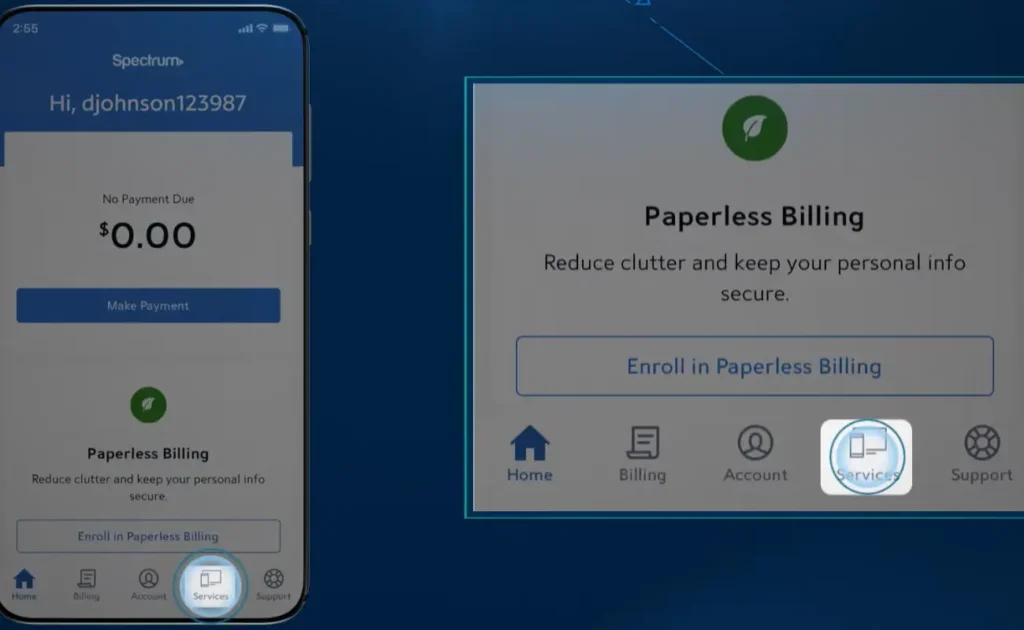
To reset a Spectrum router remotely, open the Spectrum app on your mobile phone or PC and log in by entering your username and password.
- From the bottom menu, click on Services, then click on Router.
- Now scroll down and click on Advanced Settings, then click on Factory Reset to reset your router online or remotely.
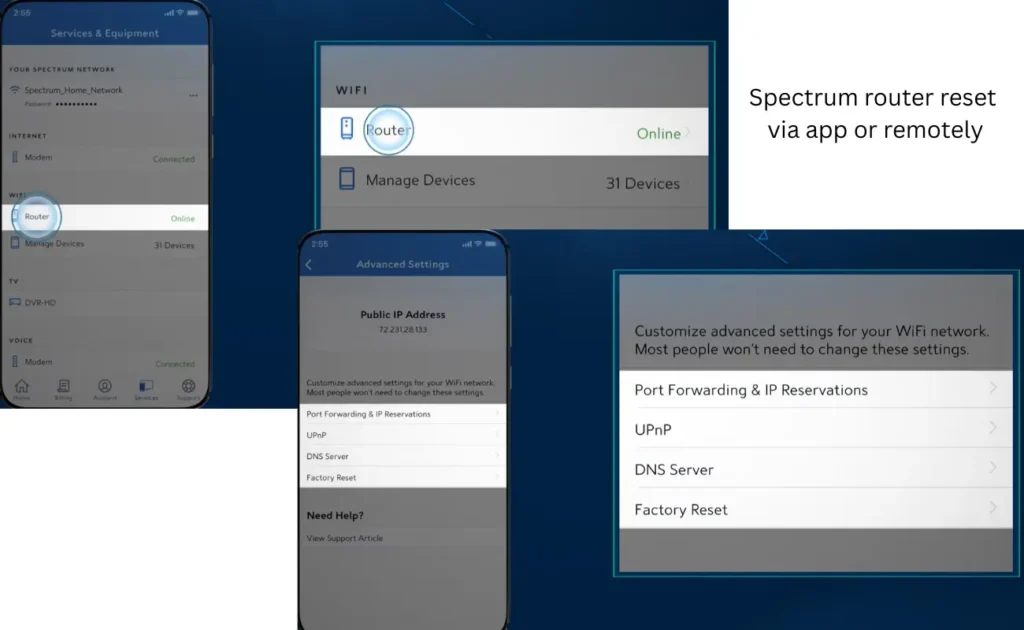
How to Factory Reset a Spectrum Router
Follow the step-by-step process below to do a spectrum router or wifi factory reset.
Steps to Factory Reset
- Keep the router powered on: Make sure the router is connected to power and turned on.
- Find the Reset button: Look for the small pinhole labeled “Reset” on the back or bottom of the router.
- Press and hold the button: Insert a paperclip or similar thin object into the hole and hold the button for 9–16 seconds.
- Release the button: Once the router lights start flashing or change, release the button and wait for the router to restart.
- Reconnect to the router: Give the router a few minutes to boot up completely. After the reset, connect using the default Wi-Fi name and password printed on the router label.
Important Note: It will remove all your customized settings, including Wi-Fi name and password. If you only want to fix a temporary internet connection problem, restart the router by unplugging it for about 60 seconds instead of performing a factory reset.
Spectrum Router Reset Button Red (Red Light)
If the Spectrum router shows a red light after pressing the reset button, it usually means the router is having trouble connecting to the internet or completing the startup process. Wait a few minutes to see if the light changes. If it stays red, check the cable connections and restart the router.
How to use the Spectrum router reset button
To use a spectrum reset button, keep the router powered on. Press and hold it with a paperclip for around 10–15 seconds until the router lights start flashing or change. After that, release the button and wait 1-2 minutes for the router to restart.
Spectrum Reset password
To reset the password, go to the app and then open the Services menu. Click on Your Spectrum Network, scroll down, and click on Edit Network Info. Now enter the new password to reset it.
Reset Not Working
If you are facing issues resetting your router using the button, then go to the app and open the Advanced Router Settings to factory reset it. But remember, it will remove all your settings, and now you will need to use the default name and password to access the Wi-Fi or change them again to a customized one.
Reasons router reset is not working
- The reset button is not being pressed correctly: The button is usually inside a small pinhole, so make sure the paperclip or pin is actually pressing the button.
- Not holding the button long enough: Hold the Reset button for around 10–15 seconds. Releasing it too early may not start the reset.
- Router is not powered on: Make sure the router has power before trying to reset it.
- Wrong button: Some devices have multiple buttons, so make sure you are pressing the one labeled Reset.
- The router is still booting: If the router has just been restarted, wait until it finishes starting up before attempting the reset.
- Temporary software issue: Restart the router, wait for it to come back online, and then try the reset again.
- Hardware problem: If the reset button does not respond after several attempts, the button or router itself may have a hardware issue.
- Reset was completed, but the Wi-Fi name didn’t change: This can happen if you’re checking the wrong network or if the router has not finished rebooting. Wait a few minutes and check again.
- The router is managed through the My Spectrum app: Some Spectrum equipment may require certain settings to be managed through the app rather than directly through the router’s web interface.
FAQs
Conclusion
Resetting a Spectrum router, modem, or Wi-Fi can help solve common issues like slow internet, connection drops, login problems, and other network errors. Before doing a factory reset, try restarting the device by unplugging it for about 60 seconds, as this will not remove your saved settings. If the problem continues, you can use the reset button or the My Spectrum app to perform a factory reset. Remember that a factory reset removes your customized Wi-Fi name, password, and other settings, so you will need to set them up again after the reset.