Spectrum router login—setup, and how to access the wifi admin page
It is necessary to get into the Spectrum dashboard via its default login when you want to update your Spectrum modem settings. The Spectrum router login helps you reset your router, change or reset the password, and set up the internet or modem. This guide explains the login process, how to log in without an app, what the blue and red lights mean, and how to change the Spectrum Wi-Fi password and name.
Spectrum Default Login
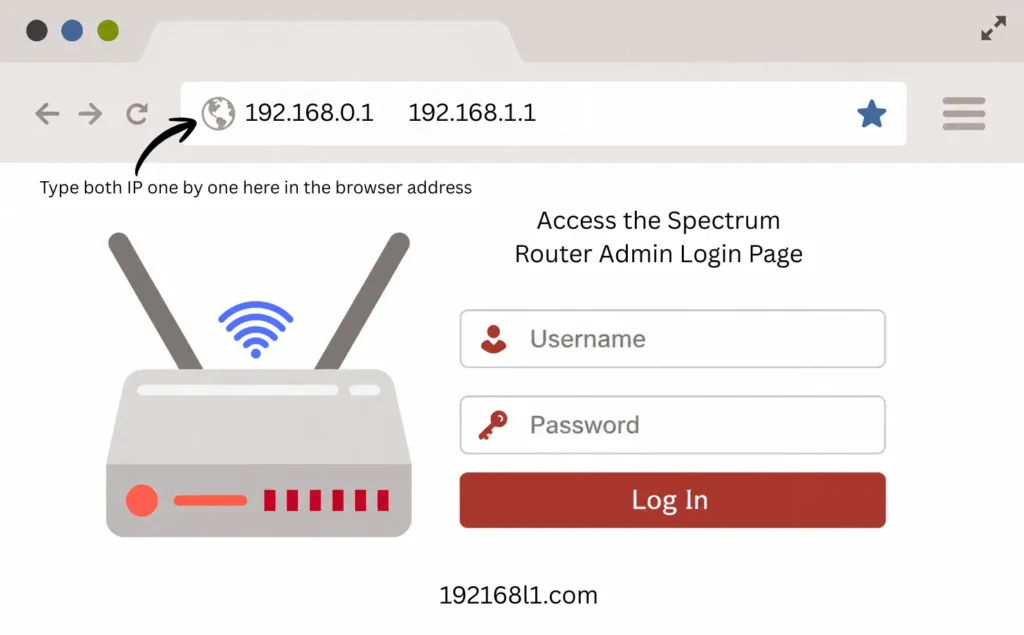
Spectrum has assigned two default IP addresses for its Wi-Fi router login page. I would suggest checking both, one by one.
Based on the local IP address, check both the IP addresses mentioned above if you don’t know which one works for you. When you click on it, it will redirect you to your router admin interface.
Important: If you’re using a Spectrum-managed router, entering the local IP address may redirect you to the My Spectrum app instead of the web-based login page. If this happens, the router can’t be managed through a browser, so you’ll need to install the My Spectrum app and use it to access and change your router settings.
Correct Steps to Log In to Spectrum WiFi Router
I will show both ways, online and via the My Spectrum app, to access the router admin page. First, I will go with the online method and then through the app.
Clicked on the buttons listed above, but both show errors and are not opening the login window? Then these steps are for you to follow.
Find Your Router’s Login Information
Start by locating the label on the back or bottom of your Spectrum router or modem. This sticker usually includes the following information:
- Default router IP address
- Administrator username
- Administrator password
- Default Wi-Fi name (SSID)
- Default Wi-Fi password
You’ll need the admin credentials to access the router’s settings page.
Connect to the Spectrum Wi-Fi Internet
I have seen users trying to log in while connected to a different router’s internet, which is inaccurate and will show you an error page. Make sure you have connected the device you are using for the login to the Spectrum home network for which you want to access its dashboard.
Enter the IP in the Browser Search Bar
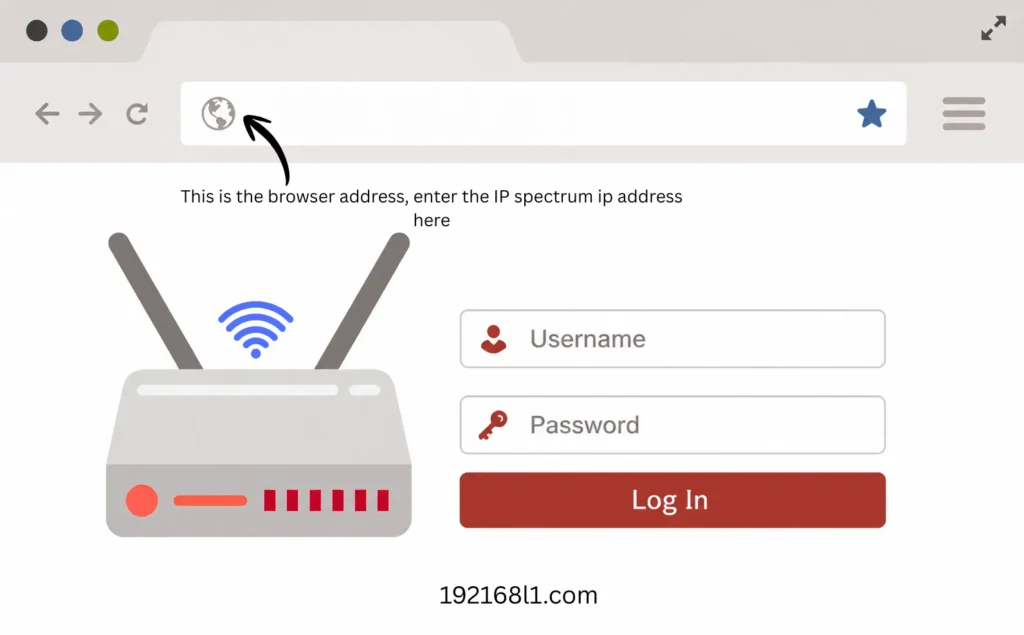
Don’t know which IP is assigned to your network? I would suggest first picking the first one. If it doesn’t work, try the other one and type it into the URL search bar of the browser. But remember, you don’t type it into the Google search engine.
- Browser Address Bar: Found at the top of your browser, it’s where you enter a website address or IP address to open it directly.
- Search Engine: A website like Google or Bing that helps you find web pages by searching for keywords.
You must type the address in the address bar instead of the search engine.
Enter Router Login Credentials
Spectrum router login and Wi-Fi login credentials are two different things. Here, you have to enter your router admin credentials to access the login page. When the login page appears, type the username, which is by default admin, and also type the password, which is by default admin, in the respective fields, and click on Login.
Important Note: If the default router login details do not work or if you have forgotten them, grab the router and look on its backside, where a printed sticker will be attached. Here, you can find the details.
Access the router via the My Spectrum App
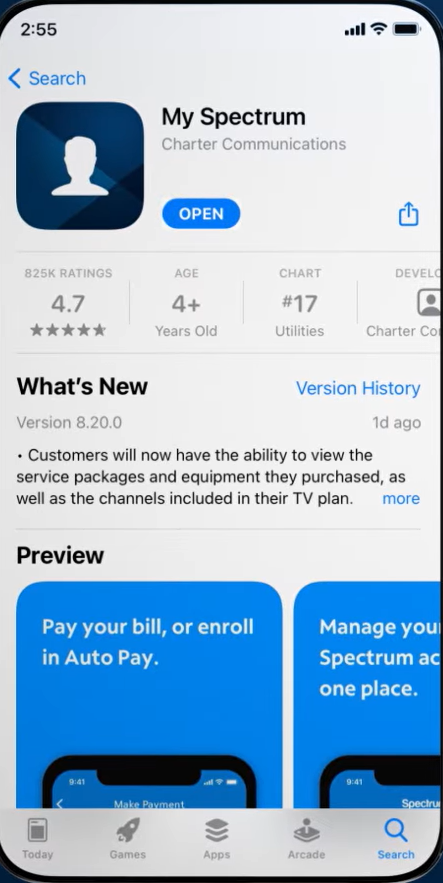
To access the Wi-Fi router settings page, first download the app. If you are an iOS user, install it from the App Store. If you are an Android user, download it from the Play Store.
Enter Your Login Credentials
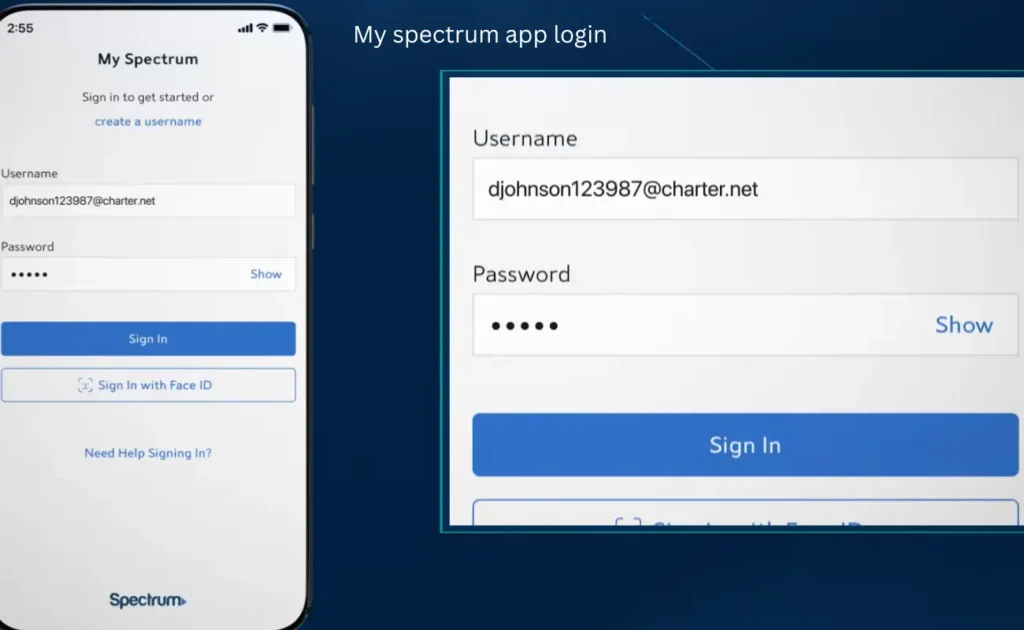
Once you download it, you now have to provide your username and password if you are already registered. If you don’t have an account, you first have to create one and then log in to it.
Set Up Wi-Fi Name and Password
After providing your login details in the app dashboard, click on the Services tab from the bottom menu to create or change your Wi-Fi name and password.
Now tap on Your Spectrum Network and click on Edit Network Info to update the Wi-Fi details.
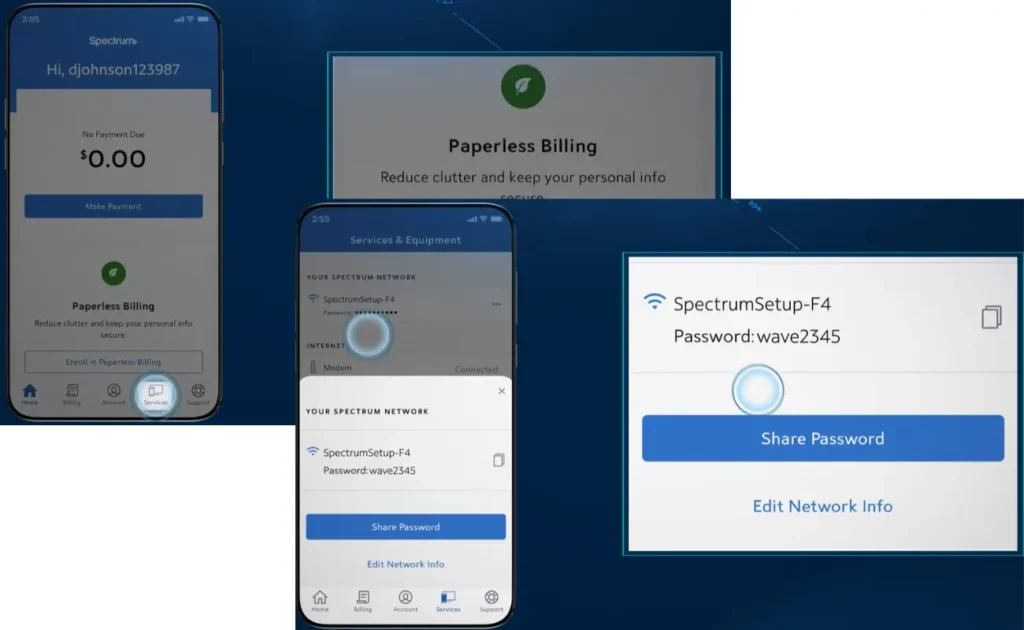
Now provide the new Wi-Fi name and password and click on Save at the top right to update the settings.
Important Note: Now you will need to enter the new updated details to access the Wi-Fi internet on all devices.
Device Management Via My Spectrum App
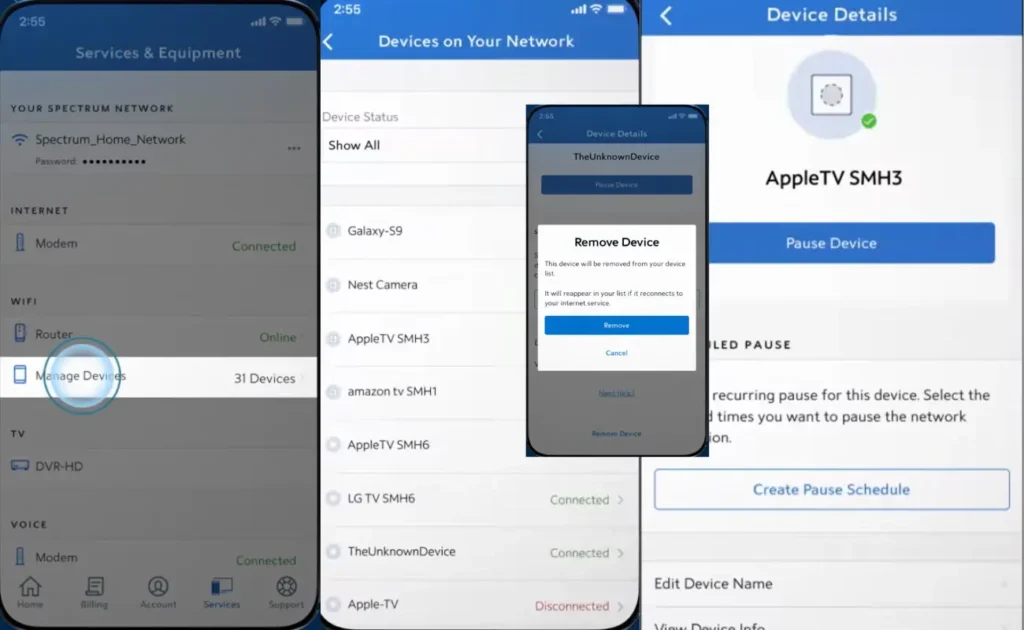
From the app’s main dashboard, click on the Services tab at the bottom. Now click on Manage Devices. When you click on it, you will see all the devices connected to your network. Now click on any device to pause, unpause, or schedule it for parental controls. You can also edit its name or view its information.
Remove Disconnected Devices
From the same Manage Devices menu, you can also remove unknown or disconnected devices from the list. To do this, click on the device name, scroll down, and click on Remove Device.
Advanced Settings
These settings are used for unique network or router configurations. You can find these settings in the Services section, just like we did with the other settings above.
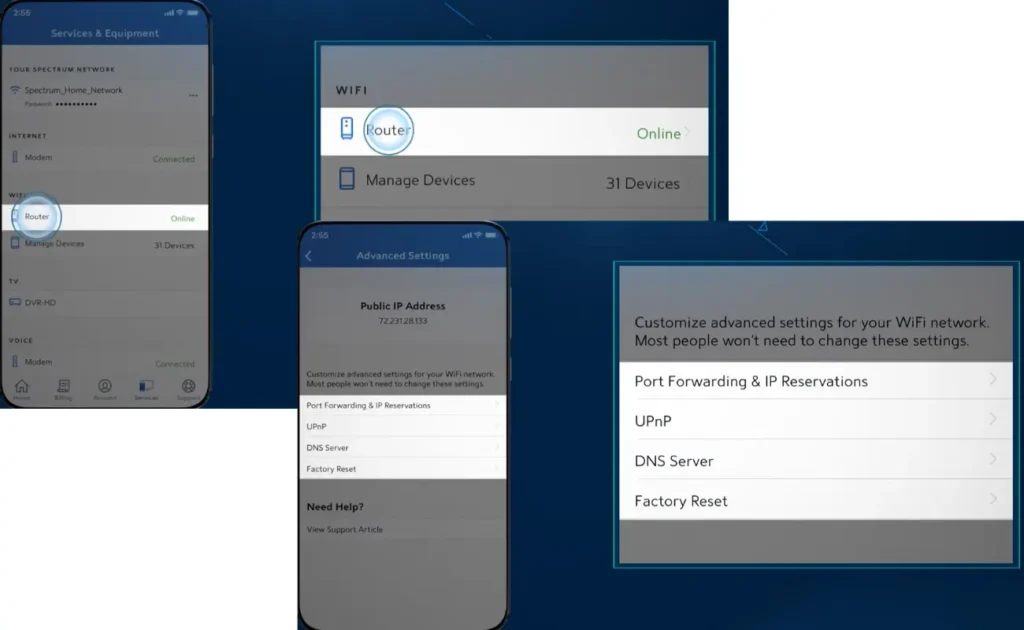
To access them, click on the Services menu, then click on Router. Now scroll down to the bottom and click on Advanced Settings. At the top, you will see the public IP address. Here, you can also perform a factory reset, set up port forwarding, make IP reservations, and more. Just click on any of these options to access their settings.
What Is the Spectrum Router Login IP?
It has two default IPs: one is 192.168.0.1, and another is 192.168.1.1. You can access the router using either IP if it is assigned, but if one doesn’t work, check the other.
Spectrum Router Default Username and Password
Below are the default Spectrum credentials that you can use to access the router page.
| Username | Password |
| Admin | Password |
| Admin | Admin |
| Empty | Admin |
| User | Password |
| Admin | Empty |
Facing Login Error—Reasons and Troubleshooting
Logging in for the first time? No problem. Most users face these issues when trying to access their router.
- The IP has been changed, or the router has assigned a different IP. Visit the relevant section to find the correct one.
- Some routers don’t support the HTTPS protocol, which can prevent the login page from opening. If you’re unable to access your router, try both HTTP and HTTPS before the router’s IP address, one at a time, to see which one works.
- If any one of these is on, turn it off: Firewall, Antivirus, or VPN.
- Don’t type www or .com with the address.
- Connect to the Spectrum router’s internet. If you are connected to a mobile phone network or another router’s network, it will prevent you from logging in to the Spectrum Wi-Fi router page.
- Use the browser address bar instead of a search engine.
Further Troubleshooting for Connecting Your Router
Note: In some cases, your browser may load a saved version of the page instead of the latest one. Clearing the browser cache can often fix this issue.
Google Chrome
- Open the Chrome menu (three dots).
- Go to More tools → Clear browsing data.
- Choose All time as the time range.
- Click Clear data.
Safari
- Open Settings and tap Safari.
- Scroll down and select Clear History and Website Data (or Clear Cookies and Data, depending on your device).
- Confirm when prompted.
Mozilla Firefox
- Open Settings and select Privacy & Security.
- Scroll to Cookies and Site Data.
- Click Clear Data.
- Leave Cached Web Content selected, then click Clear.
If the app keeps freezing at login, you can try updating the app or reinstalling it. If the issue continues, you may need to contact Spectrum support so they can check your account or device status.
Is Spectrum Fiber or Cable?
Spectrum is not a traditional fiber or DSL provider. Instead, it delivers the internet through a Hybrid Fiber-Coaxial (HFC) network. In this setup, fiber-optic cables bring the connection to your neighborhood, and the final stretch to your home is completed using coaxial cable. It has also started expanding its Fiber-to-the-Home (FTTH) service in some newly developed communities and selected rural areas where full-fiber connections are being deployed.
Advantages of Spectrum Fiber Internet
The advantage of Spectrum Fiber is that it uses a passive fiber network, meaning there is no electrical power running through the fiber lines. Because of this, it’s generally less affected by power-related outages during storms. However, it’s not immune to physical damage. If a construction crew accidentally cuts the cable or a falling tree damages the fiber line, your service can still go down, just like with AT&T Fiber.
Spectrum Modem vs. Router: What’s the Difference?
A Spectrum modem is the device that connects your home to your internet service provider (ISP). It receives the internet signal from your provider and converts it into a form that your devices can use. Without a modem, you won’t have an internet connection.
A router works differently. It takes the internet connection from the modem and shares it with multiple devices throughout your home. Whether you’re using Wi-Fi or an Ethernet cable, the router allows your phones, laptops, smart TVs, gaming consoles, and other devices to access the internet at the same time.
| Feature | Modem | Router |
| Main Purpose | Connects your home to the internet. | Shares the internet connection with multiple devices. |
| Connection | Communicates with your ISP through cable, fiber, or DSL. | Connects devices within your home network using Wi-Fi or Ethernet. |
| Number of Devices | Typically supports one direct connection. | Lets multiple devices use the same internet connection simultaneously. |
| Network Management | Only receives and converts the internet signal. | Directs internet traffic to the correct device and manages your local network. |
What Is a Spectrum Setup Password?
To set up your router, you have to access your router control panel. To do this, you will need to log in via its URL and provide the Spectrum user password. The password can be found on the router sticker, which is attached to the bottom or backside.
How to Reset Your Spectrum Router?
Facing issues like connection drops, slow internet, or login problems and want to fix them? Resetting the router is a good option. But it comes with an issue: if you reset your Spectrum router, it will erase all the settings you have configured, such as your Wi-Fi name and password. Now, you have to do all these settings again once you reset it using the default details printed on the router. Follow the steps below to reset it:
Plug in the Router
Make sure you have plugged in your router and the power is on.
Find the Reset Button
Now, look for the reset button. It is a small hole labeled Reset on the back side of the router.
Use a Paper Pin
Grab a SIM ejector, paper pin, or a clip and press the reset button. Make sure you press inside the hole and keep it pressed for 10 seconds. Don’t remove it until the lights start blinking on the router.
Once the lights turn blue and start flashing, it means the reset process has started.
Now, wait until the lights stop flashing and then wait for a minute for the router to reboot. Once all these processes are complete, the Spectrum router will be restored to its factory settings, which means all the customized settings will be removed. Now, you have to use the default details for connectivity or to log in to your user panel.
How to Activate Spectrum Internet
To activate your Spectrum Internet, connect your modem and router, then wait until the status lights turn solid. Next, connect your phone or computer to the default Wi-Fi network printed on the router’s label. Open a web browser and follow the prompts, or visit activate.spectrum.net to complete the activation. You can also activate your service through the My Spectrum app by signing in with your Spectrum account.
Change Spectrum Wi-Fi Password
If you are still using the default Wi-Fi password and name, I will recommend changing them, as this minimizes the risk of data being stolen over your Wi-Fi and makes it more difficult for intruders to access your internet. Here is a step-by-step process to change your Wi-Fi password:
Open My Spectrum Mobile App
- Go to the Spectrum app.
- Sign in using your username and password.
Tap on Services
- Inside the app, look at the bottom menu and press the Services menu.
- In the Services menu, click on View and Edit Network Info.
- Now press the Edit Network Info button.
Type New Password
A new page will pop up. Go to the password field, where you can view the old password as well as type the new password to change it.
Now, at the top-right corner, click on Save to update your settings.
Change Wi-Fi Name
In the same window where we update the password, in the Wi-Fi Network Name (SSID) field, type the new name.
FAQs
Conclusion
Spectrum router login is simple once you know the correct IP address and have the right login details. You can access and manage your router through the web browser or the My Spectrum app, depending on your router and service. After logging in, you can change your Wi-Fi name and password, reset the router, activate your internet, and manage other settings. If you face login errors, check your router IP, make sure you are connected to the Spectrum network, and try the troubleshooting steps explained above.